Tag Archives: hackint0sh

[MacOS] Backup Chameleon Boot USB-Stick

1. Abstract

You have the situation that you installed Chameleon for security and compatibility purposes on an external USB-stick. For safety reasons you should consider making a backup. But all diskimaging (either Apple’s Diskutility, Carbon Copy Cloner or Super Duper) tools fail to create a proper backup since the bootblock is just not copied. So you end up with having to create a second usb-stick, but this takes time. So why not copying it? In the following article we’ll show you some basic steps to create a proper backup of your precious Chameleon bootable USB-Stick.

This session is not considered for newbies. You need to understand the steps and understand that you can completely destroy your system when you apply certain steps in a wrong way. The following steps comprise a forum threat on OSX86.net.

2. Walkthru: Backing up your Chameleon USB-Stick

Continue reading

[MacOS] Chameleon On USB: Mounting USB Stick Correctly

Inserting USB sticks to your Mac OS X based system makes Mac OS X mount the stick without assigning certain permissions like owners, or groups.

I. How things get mounted on Mac OS

The mount command on the terminal returns most likely some lines, like that:

  • testuser$ mount
  • /dev/disk0s2 on / (hfs, local, journaled)
    devfs on /dev (devfs, local, nobrowse)
    map -hosts on /net (autofs, nosuid, automounted, nobrowse)
    map auto_home on /home (autofs, automounted, nobrowse)
    /dev/disk3s1 on /Volumes/CHAMBOOT (hfs, local, nodev, nosuid, journaled, noowners)
    /dev/disk1s4 on /Volumes/Mac OS X Install DVD (hfs, local, nodev, nosuid, noowners)

You can see quite a lot of slices (i.e. ~partitions) are mounted to that system I am running here. For instance disk1s4 is the forth slice of disk1 and it countains an image of a Mac OS X Install DVD. And you can see a CHAMBOOT named drive mounted with several options.

II. Mount Options/Permissions

Our beloved USB stick named CHAMBOOT (contains Chameleon and) is disk3s1 and is mounted to /Volumes/CHAMBOOT. Mac OS handles USB mounting for most of our every day life operations fairly reliable. But this comes at a cost, as this simplicity is achieved here by applying options like nosuid and noowners during the mount process.

For people willing to run Chameleon from a USB stick permissions are inevitable, as for instance an Extensions.mkext kextcache can only be generated with proper file permissions being set.

II. Mounting USB with permissions

This just requires some simple mount operations being performed manually on the terminal. Do the following:

  • testuser$ sudo -s
    Become ultimate root now.
  • testuser$ cd
    Get back to the home folder whereever you’ve been before.
  • testuser$ sync
    Force completion of pending disk writes.
  • testuser$ umount -f /Volumes/CHAMBOOT
    This unmounts the USB stick called CHAMBOOT
  • testuser$ mkdir chamboottemp
    Create a temporary folder for our mounting session
  • testuser$ mount_hfs /dev/disk3s1 chamboottemp/
    Mount the USB stick to the temporary folder
  • testuser$ mount
    See how the drives are mounted now
  • /dev/disk0s2 on / (hfs, local, journaled)
    devfs on /dev (devfs, local, nobrowse)
    map -hosts on /net (autofs, nosuid, automounted, nobrowse)
    map auto_home on /home (autofs, automounted, nobrowse)
    /dev/disk3s1 on /Users/admin/chamboottemp (hfs, local, journaled)
    /dev/disk1s4 on /Volumes/Mac OS X Install DVD (hfs, local, nodev, nosuid, noowners)
    You can see the USB stick is now mounted without “extra” options.

Now you can apply changes to the USB stick’s files in the proper manner (like copying files, repairing permissions and creating a kextcache). After having performed all the changes, you can correctly unmount. Read here:

III. Manually Unmounting

  • testuser$ cd
    Get back to the home folder whereever you’ve been before.
  • testuser$ umount -f chamboottemp
    Force to unmount the device mounted to the chamboottemp folder now.
  • testuser$ rmdir chamboottemp
    It is safe to delete the chamboottemp folder now.

IV. Links

» Mac OS X Reference Library: Man Page for “sync”
» Mac OS X Reference Library: Man Page for “mount”
» AsereBln.BlogSpot.com: Some terminal work

[MacOS] 10.6.2 Update Released – Intel Atoms Killed

Apple’s 10.6.2 update closes lots of security holes that could be used to compromise systems. Safari, iWork, iLife, Aperture, Final Cut Studio, and some other apps are rumored to be working more reliable after updating.

Apple pwns back

For OSX86 users on netbooks this update is far away from being recommended at the moment. The update now has proved what has been rumored some days ago: Intel Atom support has definitely been removed from the kernel.

Thus rendering Intel Atom based netbooks non working. Netbooks will not boot after updating as the following video by Stellarola shows. It shows the typical behaviour if the CPU is not supported by the kernel, OS X will instantly reset the system.

» Stellarola: Official – Atom not supported in 10.6.2
» Apple: About the 10.6.2. update
» Apple: Support Downloads for 10.6

[MacOS] Update 10.6.2 to Break Intel Atom CPU Support

According to Stellarolla’s blog the upcoming Snow Leopard update 10.6.2 and the Leopard update 10.5.9 will most likely break Intel Atom support. Thus rendering hackintosh installations on netbooks inoperable.

Although Apple does not provide products shipping with Intel Atom CPUs, the Mac OS kernel did support those. Now with the growing amount of hackintoshs it seems Apple tries to stop the use of their operating system on cheap an tiny netbooks.

Probably this is another indicator that Apple is going to bring the long rumored tiny tablet Mac. Anyway for people willing to maintain MacOS on their netbooks the easiest way is to not update to 10.6.2 or 10.5.9 at the moment.

» Stellarolla: “10.6.2 kills Atom and other news”…

[MacOS] Psystar Release Rebel EFI

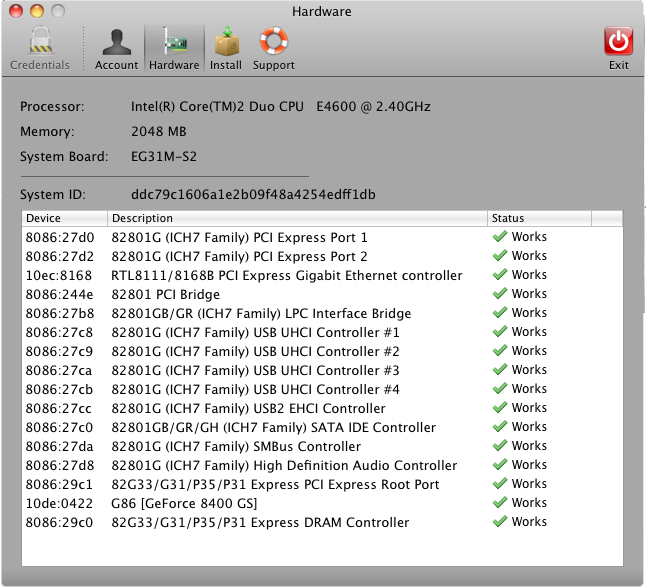
As of yesterday the notorious Mac Clone manufacturer Psystar has released a commercial software called Rebel EFI. Rebel EFI prepares a normal PC to allow for the installation of Mac OS.

After downloading Rebel EFI,

[..] users simply insert a retail copy of the Snow Leopard DVD, follow the installation procedures and then install the application. The application automatically detects connected devices and downloads the appropriate drivers.

Rebel EFI features Psystar’s DUBL (Darwin Universal Boot Loader) and a Safe Update mode, that prevents users from installing updates that could break their systems. The Safe Update mode only installs Psystar approved updates.

In contrast to the EFI-X manufacturers, Psystar in the past has released several drivers for free to the OSX86 scene. The advantage of Rebel EFI in contrast to solutions like the Chameleon boot is that is already comes with an automized hardware detection and a bunch of downloadable hardware drivers. Chameleon on the other hand is available free of charge and a lot more powerful for users in the know. So decide for yourself which product fits your needs the best.

A single license for Rebel EFI costs about 50US$ and can be ordered here.

rebelefi_hardware

Image 1 of 2