Abstract
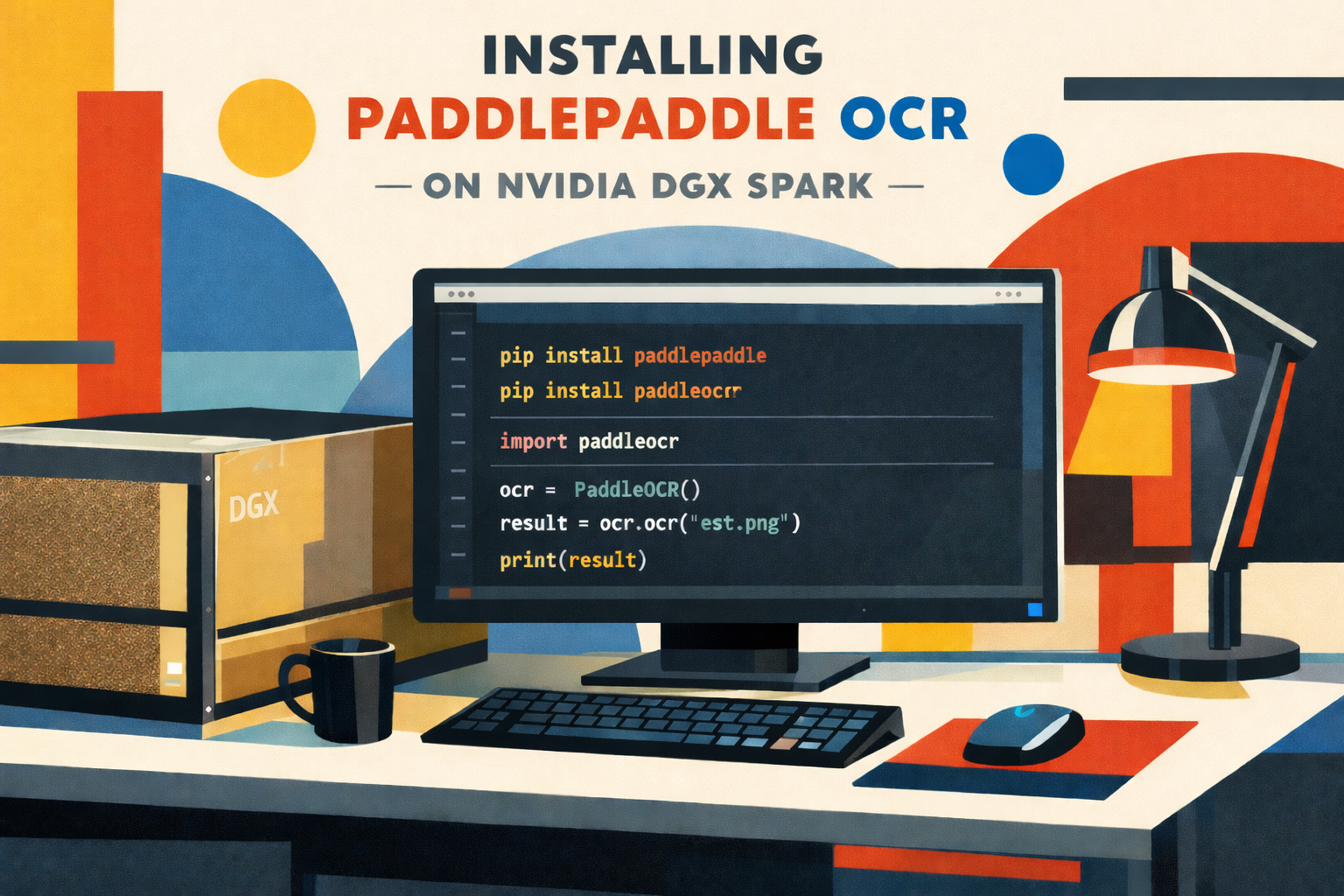
One of the most powerful OCR engines available as open source is PaddlePaddle. Sadly, Paddle is only available on ARM64 (aarch64) with CPU support. No binaries are provided for ARM64 with GPU support. Thus, running PaddlePaddle on an NVIDIA DGX Spark won’t make use of its powerful Blackwell GPU.
The only way currently available is to compile PaddlePaddle for CUDA 13.0 on an NVIDIA DGX Spark manually. As manual compiling often comes with hurdles, I will try to briefly address the compiling process in the following article.
As of Q1/2026 the DGX Spark is preinstalled with an NVIDIA branded version of Ubuntu 24.04 for ARM64 dubbed DGX OS 7.
- PaddlePaddle on GitHub: https://github.com/paddlepaddle/paddle
- NVidia DGX Spark on Wikipedia: https://en.wikipedia.org/wiki/Nvidia_DGX#DGX_Spark
- DGX OS 7 (Ubuntu 24.04): https://docs.nvidia.com/dgx/dgx-os-7-user-guide/
Recommendations
I. AI Support for help compiling process
While all LLMs have pro’s and con’s, I had best results in this specific case with Anthropic’s Claude. It guided me through some issues in Step 8 and Step 9. Support provided by ChatGPT or Gemini didn’t bring me on the right track.
II. Machine needs to have latest updates
Furthermore, have all updates installed and have had a fresh reboot. Have no kernel or firmware update pending. Just don’t.
Step 1. Check this
$ uname -m          # is aarch64, right?
$ nvcc --version    # CUDA 13.0 (or 12.9+)
$ nvidia-smi        # GB10, Compute Capability 12.1
$ python3 --version # 3.10–3.12 recommended
Step 2. Dependencies
$ sudo apt-get update$ sudo apt-get install -y \ git cmake ninja-build \ python3-dev python3-pip python3-venv \ libopenblas-dev liblapack-dev \ gfortran patchelf swig \ wget curl unzip \ libssl-dev zlib1g-dev$ pip3 install cython wheel setuptools numpy protobuf
Step3: Check for CUDA 13.0 Toolkit for SBSA/aarch64
$ dpkg -l | grep cuda-toolkit
If not installed, install via apt on DGX OS:$ sudo apt-get install cuda-toolkit-13-0
Step 4. Python Venv for Paddle Compiling
Create a python virtual environment for the compilation process.
$ python3 -m venv paddle_env
Activate and start the virtual environment$ source ~/paddle_env/bin/activate
Step 5: Install Build-Dependencies into Venv for Paddle Compiling
(paddle_env)$ pip install --upgrade pip
(paddle_env)$ pip install numpy protobuf cython wheel setuptools
Verify with:
(paddle_env)$ which python3 # must show ~/paddle_env/bin/python3                            # NOT /usr/bin/python3
(paddle_env)$ python3 --version    # 3.12.3(paddle_env)$ pip --version        # pip xx.x from ~/paddle_env/...
Step 6. Clone PaddlePaddle Source
(paddle_env)$ cd ~
(paddle_env)$ git clone https://github.com/PaddlePaddle/Paddle.git
(paddle_env)$ cd Paddle
Current Stable-Branch (3.x)(paddle_env)$ git checkout develop # or git checkout v3.3.0
Submodules(paddle_env)$ git submodule update --init --recursive
Verify
(paddle_env)$ ls ~/Paddle
(paddle_env)$ git log --oneline -3
Step 7. Install Packaging
(paddle_env)$ pip install -r ~/Paddle/python/requirements.txt
Step 8. This is nasty part A
It took many attempts, because “Eigen” gave errors during compilation. This flag eventually worked: DCMAKE_CUDA_FLAGS=”-U__ARM_NEON -DEIGEN_DONT_VECTORIZE=1″.
(paddle_env)$ cd ~/Paddle/build
As known, this cmake also creates a log file (“cmake_output.log”) that helps a lot when determining reasons for errors. Nowadays AI-LLMs are very helpful for analysing in case anything goes south.
(paddle_env)$ cmake .. \    -GNinja \
    -DCMAKE_BUILD_TYPE=Release \
    -DWITH_GPU=ON \
    -DWITH_TESTING=OFF \
    -DCUDA_ARCH_NAME=Manual \
    -DCUDA_ARCH_BIN="12.1" \
    -DWITH_ARM=ON \
    -DWITH_AVX=OFF \
    -DWITH_MKL=OFF \
    -DWITH_MKLDNN=OFF \
    -DWITH_TENSORRT=OFF \
    -DCMAKE_CUDA_FLAGS="-U__ARM_NEON -DEIGEN_DONT_VECTORIZE=1" \
    -DPYTHON_EXECUTABLE=$(which python3) \
    2>&1 | tee cmake_output.log
Step 9. This is nasty part II
in case everything went well, you can you start compiling:(paddle_env)$ ninja -j$(nproc) 2>&1 | tee build_output.log
This compiling process took about 40mins on my DGX
Step 10. Install DGX compatible PaddlePaddle wheel to your working Venv
Leave the compilation Venv (deactivate) and activate your desired working Venv (!!!!) Don’t use the compilation Venv for working purposes and neither use your working Venv as a compilation Venv.
Deactivate your compiling Venv and start your working Venv(paddle_env)$ deactivate$ source /your_working_venv/bin/activate
Install PaddleOCR core library, dependencies and the CLI tool (paddleocr). PaddleOCR by default installs only the CPU version on a DGX-Spark as a GPU version (paddlepaddle-gpu) is not (yet) provided for ARM64.
()$ your_working_venvpip install paddleocr #installs core library, dependencies and CLI tool.
Now install your freshly compiled PaddlePaddle wheel to your desired Venv. ()$your_working_venvpip install ~/Paddle/build/python/dist/paddlepaddle_gpu-3.4.0.dev20260405-cp312-cp312-linux_aarch64.whl
Lemme know, if it helps…