According to Mac4Ever (french) the Snow Leopard 10A432 version seems to be the Gold Master (GM) release, meaning this is the final release-to-manufactoring (RTM) version. Although latest rumors (german Golem.de) say Snow Leo might be released in late August, newest information tell release is in September.
Author Archives: XÏMΞK0N
[Pre] Merry Me again: Update Reunites Palm Pre with iTunes
The “little Palm Apple battle” goes into its next round. A week ago Apple released iTunes 8.2.1. This update blocked Palm Pre users from synchronizing music and movies with iTunes. We reported about this update and the technical implications of the sync feature here.
Palm has now released a firmware update (webOS 1.1.0) for the Palm Pre. According to Palm’s blog entry this update contains the following features:
- Exchange ActiveSync (EAS) (including remote wipe, PIN/password requirements, inactivity timeout, improved certificate handling and more)
- support for emoticons in the messaging app
- person reminders (“Next time you get a message or phone call from that person, a message pops up showing you a reminder to ask them about their vacation in Maui” ct. Palmblog)
- and Palm webOS 1.1 re-enables Palm media sync with music, photos and videos with the current version of iTunes (8.2.1).
Got issues with the Update?
Our fellow Heise.de News (german only) recommend not to update your Palm Pre while it is connected to iTunes. In case you did that and your Palm Pre does not interact on USB anymore, do a hard reset with unplugging the battery.
[News] Apple Bar Palm Pre from Syncing with iTunes
With the latest update of iTunes 8.2.1 Apple eventually blocks Palm Pre users from syncing with iTunes. It seems Palm knew very carefully how to emulate the iPod verification protocol of iTunes. How comes?
Some major Palm Guys are former major Apple Guys
One could ask Palm’s CEO Jon Rubinstein, or Palm’s SVP of Product Development Mike Bell, or Palm’s spokeswoman Lynn Fox. As all of these three guys are former Apple guys. Rubinstein was Apple’s architect of the iTunes-iPod concept, Mike Bell was the Vice President of the Mac Hardware Division, and Lynn Fox was Head of PR at Apple.
Anyway Apple now decided to fix this issue and bar Palm Pre users from using iTunes for syncing. But what looks like a simple update in the first place may be viewed as a strategic answer to Palm’s boldness to make the Pre pretend being an iPod for iTunes.
Some Technical Aspects
According to DVD Jon the iPod emulation was not too complicated. Palm needed to emulate
- the USB interface so that it responds with Apple’s Vendor ID and an iPod Product ID
- the structure of an iPod filesystem
- some XML info about the iPod device using a custom Apple USB command
But the the root USB node (IOUSBDevice) still identified the emulated iPod as a Palm Pre (find more details here).
David vs. Goliath
Does Apple fear Palm here? It seems like Palm is putting Apple under some pressure here. The Palm Pre is widely considered as the only real iPhone competitor and allowing it to sync with iTunes would make it more favourable for users who don’t like the proprietory iPhone concept. On the other hand Apple’s step to block it from iTunes again makes the iPhone and iPods the only choice for iTunes users. Anyway it shows obviously that a little fight is going on between Apple and Palm. This topic is under hot discussion on the PreCentral site.
Palm’s spokeswoman Lynn Fox just responded to Apple’s step “Palm’s media sync works with iTunes 8.2. If Apple chooses to disable media sync in iTunes, it will be a direct blow to their users who will be deprived of a seamless synchronization experience. However, people will have options. They can stay with the iTunes version that works to sync their music on their Pre, they can transfer the music via USB, and there are other third-party applications we can consider.”
[News] Fravia is Dead
This might not be the news for many of you. Some will already know, others will most likely not even know who Fravia was. Anyway, this news is sad. Fravia has been one of the most outstanding intellectual reverse engineering gurus since the middle of the 1990’s. He seems to be the only one who ever managed to get into direct contact to the mysterious +ORC (Old Red Cracker), who edited the main reverse engineering tutorials during that time.
Fravia anyhow passed away in May, after a long fight against cancer. He has become 56 years only. Our hearts will be with you. Rest in Peace, bro’. You won’t be forgotten.
[MacOS] Recommended Apps: MacTubes
Abstract
Do you ever wanted to download some of the YouTube videos, simply to have them available when being on the road? Or say: you wanna archive them, because as we’ve seen in the past with several major media services: there will be a time when they don’t exist anymore.
But YouTube does not support downloading their videos anymore.
MacTubes’ Features
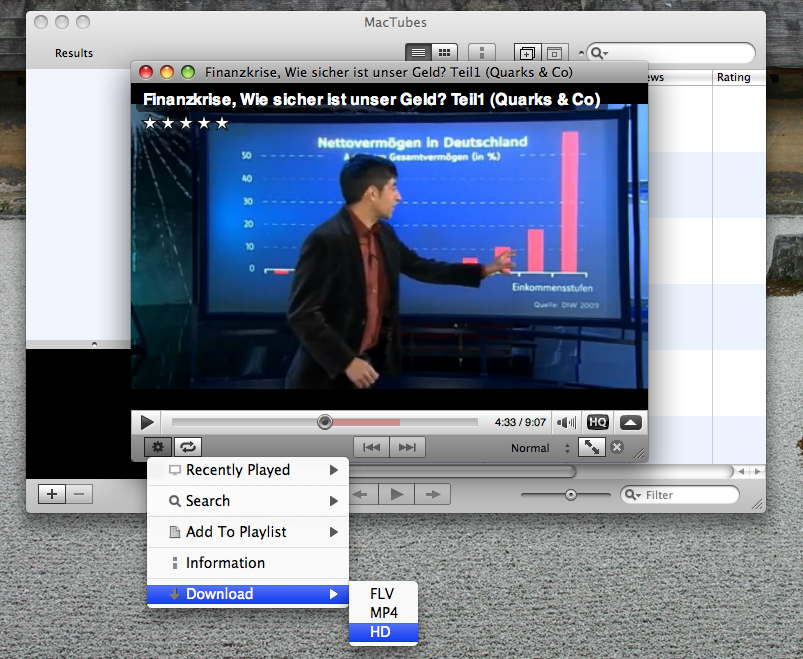
This is where MacTubes by mametunes comes into place. MacTubes is an open source project that is freely downloadable. Besides downloading MacTubes also supports just playing YouTube videos. You also can make custom playlists without having a YouTube account.
Tips and Tricks
MacTubes is straightforward, as most of those nice freeware Mac applications are.
The only hint we can give: don’t wonder if errors occur when trying to download HD videos. This is normal. Although YouTube may show that you are playing the video in HD quality, this is not true in all cases. You can see this quite obviously when comparing the video resolutions between the normal video and the HD video just with your eyes.
Links
» MacTubes Download…
Screenshot
[Muzaq] DJ Food: One Man’s Weird Is Another Man’s World
Famous DJ Food have released a new Maxi. We feel it is definitely worth to listen into:
As always the Bleep.com player allows only 30secs pre-listening. Click the play button again for listening to the next 30secs parts. Enjoy.
[Muzaq] Roots Manuva: Do Nah Bodda Mi
You like Dub? You like Mr. Rodney Smith aka Roots Manuva. Then you gotta listen to this track: I definitely love it. Just buy it and “Do not bother me” with questions were to get it: just check here…
The embedded Bleep.com player allows pre-listening of 30secs parts. Means: after 30secs you need to click the play button again to listen to the next 30secs…
[Pre] Palm Pre Goes Europe
There have been rumors in the last weeks which carrier which offer the Palm Pre in European countries. As of today we know the rumors were true. In Germany, Great Britain, Ireland O2 will be the exclusive distributor of Palm’s new flagship, in Spain the iPhone competitor will be offered by Movistar.
As of now other European carriers seem to be in negotiations with Palm for exclusive distribution. There are no information yet about subscription prices. According to the O2’s german Preregistration site introduction to the german market is planned for october 2009.
[Windows] Recommended Apps: Really Slick Screensavers
Abtract
Have you also been trying to find a really nice screensaver for your Windows machine. There are so many nice screensavers for the Mac, but for the Windows world you can’t find them.
What we found
While searching for nice screensavers we came accross this collection of free of charge and open source screensavers called “Really Slick Screensavers”. Check them out. The screensavers included are named:
- Cyclone
- Euphoria
- FieldLines
- Flocks
- Flux
- Helios (YouTube video below)
- Hyperspace
- Lattice
- Plasma (YouTube video below)
- Skyrocket
- SolarWinds (YouTube video below)
Download
By the way: some of the screensavers have also been ported to Mac OS and Linux.
Demo Videos
[iPhone] HowTo Make MMS Work on iPhone 2G
NOTE: This walkthrough is for iPhone OS 3.0 only!
For MMS on iPhone 2G with firmware 3.1, buy SwirlyMMS on Cydia Store
I. Abstract
Many iPhone 2G users are not very amused about Apple’s update policy. As of iPhone OS 3.0, owners can eventually use MMS on their iPhones. All owners? No, not the ones who have iPhones from the very beginning.
The MMS feature is not officially available on the iPhone 2G, although there is no technical reason for the limitation – as we’ve seen with SwirlyMMS.
This seems to be one of Apple’s ways to tell you you need to get a new iPhone at least every two years. Quite expensive you think? Right, but get used to it as this seems to be Apple’s business strategy of lifecycles with many products.
Anyway, Apple provides one of the best user experiences for their products and that’s the point why you are here reading these lines.
To make things short. There is a way to make MMS work on the iPhone 2G with firmware 3.0. Kudos fly out to Geniusan for the ActivateMMS2G patch, and to Craig_16 (this walkthrough is based on his findings!).
II. Requirements
You need to have the following configuration:
- an iPhone 2G with iPhone OS 3.0 (Warning don’t try this on an iPhone 3G or 3Gs, you’d be screwed!!!)
- jailbroken (find Jailbreak HowTo here)
- with Cydia running
Of course you’ve done a backup of your contacts, your calendar, and your photos, didn’t you?
And you need to have your carrier settings available (!!!!). Search MMS settings here before you proceed! In the following example we’re going to use a reseller of the german T-Mobile network called Callmobile. Callmobile got these settings:
| Internet / Wap | Callmobile Germany |
| APN | internet.t-mobile |
| Username | tm |
| Password | tm |
| Visual Voicemail (not available!) | |
| APN | |
| Username | |
| Password |
| MMS settings | |
| APN | mms.t-d1.de |
| Username | t-mobile |
| Password | mms |
| MMSC | http://mms.t-mobile.de/servlets/mms |
| Proxy | 172.28.23.131:8008 |
blank
III. Preparations
The preparation steps are intended for user who already have tempered to make MMS running but failed. Those steps help restoring the iPhone to a status where we can eventually enable the MMS feature. Our recommendation: if you didnot try to make MMS running yet, you may want to read these steps anyway and apply most of the steps as available.
Pre.Step 1: Resetting Cellular Data Profiles
If you already tempered with the network settings to make MMS work, you first need to reset the settings. On your iPhone go to
Settings»General»Network»Cellular Data Network
If the Cellular Data Network menu is no available: that’s no problem, we’re gonna enable it later. Jump to Pre.Step 2.- Scroll down and click on
Reset Settings
- Confirm question with a click on the
Resetbutton
- Click the
Networkbutton to leave the settings menu and Rebootyour iPhone
Pre.Step 2: Removing Cellular Profiles
On your iPhone go to
Settings»General»Profile
Again: if this menu is not available, we’re gonna enable it later. Jump to Pre.Step 3.- Click
Remove
- Confirm
Remove
Rebootyour iPhone now
Pre.Step 3: Uninstalling ActivateMMS2G
On your iPhone go to
Cydia(available on jailbroken iPhones only! Wanna do a jailbreak now? Go here.) and
ClickManage
- Click
Packages
- Click
ActivateMMS2G
- Click
Modify
- Click
Remove
- Click
Confirm
- Click
Reboot Device
IV. The Walkthrough
After having applied all the preparations we now have the situation that all of us should have almost the same conditions with the cellular network settings. This is an important condition.
Step 1. Installing ActivateMMS2G
On your iPhone go to
Cydia(available on jailbroken iPhones only! Wanna do a jailbreak now? Go here.)
- Click
Search,Enter manually
ActivateMMS2G, and when found:
ClickActivateMMS2G
- Click
InstallandConfirm
- Click
Reboot Device
Step 2. Installing A Custom Profile
On your iPhone go to
Safariand open this website:http://help.benm.at(kudos!)- Scroll down and click
Mobilconfigs create
- now the fun part starts, as here many issues may occur if you don’t pay attention
- In contrast to what the fields’ description show we
enter in all fields the required mms settings, got it? According to our example for Callmobile we enter this:
clickEnable Thethering
and clickGenerate - you’ll be asked if you wanna install a new profile: Click
Install
- Confirm with
Install Now
- Click
Done - Now
quit Safari - Don’t check the settings, but
- again
Rebootnow
Step 3. Adding Appropriate Cellular Settings
On your iPhone go to:
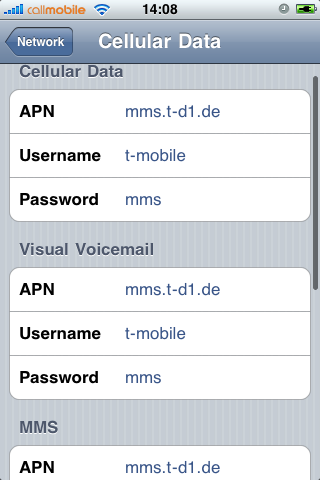
Settings»General»Network»Cellular Data Network- Now you see, that the MMS settings are present in all fields, of course this is wrong.
- Now remember one thing:
don't touch or edit the following entries:MMS/APN,MMS/Username, andMMS/Password. Once edited manually they will be lost and missing, because they will not get saved after leaving the menu. You would then have to start over above with point III. Preparations. You got me, right? - Enter
MMSCandMMS Proxyfirst. - For Callmobile Germany (see above)
MMSCishttp://mms.t-mobile.de/servlets/mmsand
MMS Proxyis172.28.23.131:8008 - The result will look like this:
- Click the
Networkbutton to leave the settings menu and - do a
Rebootnow to make sure the iPhone has loaded the new MMS settings
Step 4. Sending two Test MMS’
What we here basically do is, we’re gonna send the MMS to us. This allows us to check if receiving works and this also auto-enables the MMS feature on many carriers worldwide (not with AT&T in the U.S., sorry). After sending the first MMS you may receive an SMS instead that tells you you can watch the MMS on the internet. This is because the carrier has not updated your MMS capability yet. Now wait about five minutes and send another MMS to your own iPhone. This time you should receive it.
This is how we do it. On your iPhone go to:
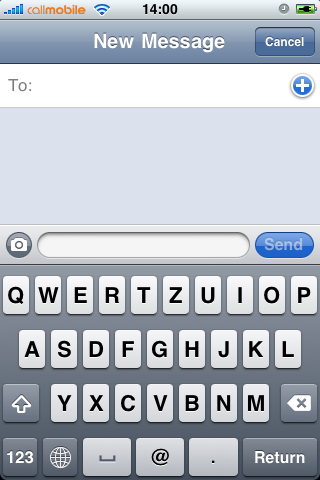
Messages- Click on
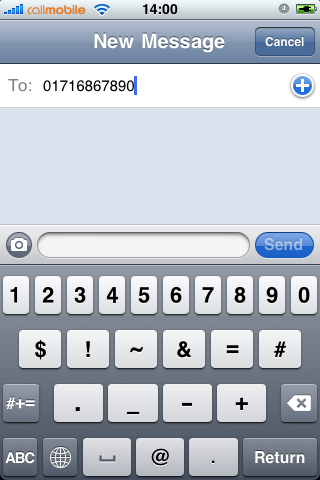
New Messageicon (also note that a camera icon will be left to the text field)
- Enter
your own iPhone cell number
- Click the
camera iconand take a photo
- Back in the Messages app, click the
Sendbutton
- Your first MMS will be send now
- As already written above: you should be either receiving now a text message telling you to read the MMS on the internet or you receive the MMS. If you only get a text message wait a couple of minutes and try again.
If anything does not work: we recommend to check the internet for your carrier specific settings. In 99% of the cases it is not related to the iPhone, but due to wrong carrier settings. Or your carrier simply has deactivated the MMS feature for your subscription (i.e. AT&T)!
Step 5. Editing the EDGE/GPRS Internet Settings
Again on your iPhone ;-) go to:
Settings»General»Network»Cellular Data Network- Edit the
Cellular Datafields - As written in the beginning, for Callmobile Germany take this:
APNisinternet.t-mobile
Usernameistm
Passwordistm
- Click the
Networkbutton to leave the settings menu and Rebootyour iPhone
V. Final words
You should check if your EDGE/GPRS settings work by deactivating your Wi-Fi and go online via GPRS/EDGE only. People reported it may be slower than before. We cannot confirm this. EDGE/GPRS is slow like hell anyway. If you are running a subscription that supports Visual Voicemail you can also enter the appropriate information after reboot and test if it works.
Did we tell you about our sponsors? They help us maintaining this site free. You may visit them to check their coolest offers. Thanks! If you got questions, additions or shouts, don’t hesitate…