Tag Archives: Walkthrough

[Linux] PaddlePaddle with GPU on DGX Spark

Abstract

One of the most powerful OCR engines available as open source is PaddlePaddle. Sadly, Paddle is only available on ARM64 (aarch64) with CPU support. No binaries are provided for ARM64 with GPU support. Thus, running PaddlePaddle on an NVIDIA DGX Spark won’t make use of its powerful Blackwell GPU.

The only way currently available is to compile PaddlePaddle for CUDA 13.0 on an NVIDIA DGX Spark manually. As manual compiling often comes with hurdles, I will try to briefly address the compiling process in the following article.

As of Q1/2026 the DGX Spark is preinstalled with an NVIDIA branded version of Ubuntu 24.04 for ARM64 dubbed DGX OS 7.

Recommendations

I. AI Support for help compiling process
While all LLMs have pro’s and con’s, I had best results in this specific case with Anthropic’s Claude. It guided me through some issues in Step 8 and Step 9. Support provided by ChatGPT or Gemini didn’t bring me on the right track.

II. Machine needs to have latest updates
Furthermore, have all updates installed and have had a fresh reboot. Have no kernel or firmware update pending. Just don’t.

Step 1. Check this

$ uname -m          # is aarch64, right?
$ nvcc --version    # CUDA 13.0 (or 12.9+)
$ nvidia-smi        # GB10, Compute Capability 12.1
$ python3 --version # 3.10–3.12 recommended

Step 2. Dependencies

$ sudo apt-get update
$ sudo apt-get install -y \
git cmake ninja-build \
python3-dev python3-pip python3-venv \
libopenblas-dev liblapack-dev \
gfortran patchelf swig \
wget curl unzip \
libssl-dev zlib1g-dev
$ pip3 install cython wheel setuptools numpy protobuf

Step3: Check for CUDA 13.0 Toolkit for SBSA/aarch64

$ dpkg -l | grep cuda-toolkit

If not installed, install via apt on DGX OS:
$ sudo apt-get install cuda-toolkit-13-0

Step 4. Python Venv for Paddle Compiling

Create a python virtual environment for the compilation process.

$ python3 -m venv paddle_env

Activate and start the virtual environment

$ source ~/paddle_env/bin/activate

Step 5: Install Build-Dependencies into Venv for Paddle Compiling

(paddle_env)$ pip install --upgrade pip
(paddle_env)$ pip install numpy protobuf cython wheel setuptools

Verify with:

(paddle_env)$ which python3 # must show ~/paddle_env/bin/python3                            # NOT /usr/bin/python3
(paddle_env)$ python3 --version    # 3.12.3(paddle_env)$ pip --version        # pip xx.x from ~/paddle_env/...

Step 6. Clone PaddlePaddle Source

(paddle_env)$ cd ~
(paddle_env)$ git clone https://github.com/PaddlePaddle/Paddle.git
(paddle_env)$ cd Paddle

Current Stable-Branch (3.x)
(paddle_env)$ git checkout develop # or git checkout v3.3.0

Submodules
(paddle_env)$ git submodule update --init --recursive

Verify

(paddle_env)$ ls ~/Paddle
(paddle_env)$ git log --oneline -3

Step 7. Install Packaging

(paddle_env)$ pip install -r ~/Paddle/python/requirements.txt

Step 8. This is nasty part A
It took many attempts, because “Eigen” gave errors during compilation. This flag eventually worked: DCMAKE_CUDA_FLAGS=”-U__ARM_NEON -DEIGEN_DONT_VECTORIZE=1″.

(paddle_env)$ cd ~/Paddle/build

As known, this cmake also creates a log file (“cmake_output.log”) that helps a lot when determining reasons for errors. Nowadays AI-LLMs are very helpful for analysing in case anything goes south.

(paddle_env)$ cmake .. \    -GNinja \
    -DCMAKE_BUILD_TYPE=Release \
    -DWITH_GPU=ON \
    -DWITH_TESTING=OFF \
    -DCUDA_ARCH_NAME=Manual \
    -DCUDA_ARCH_BIN="12.1" \
    -DWITH_ARM=ON \
    -DWITH_AVX=OFF \
    -DWITH_MKL=OFF \
    -DWITH_MKLDNN=OFF \
    -DWITH_TENSORRT=OFF \
    -DCMAKE_CUDA_FLAGS="-U__ARM_NEON -DEIGEN_DONT_VECTORIZE=1" \
    -DPYTHON_EXECUTABLE=$(which python3) \
    2>&1 | tee cmake_output.log

Step 9. This is nasty part II
in case everything went well, you can you start compiling:
(paddle_env)$ ninja -j$(nproc) 2>&1 | tee build_output.log

This compiling process took about 40mins on my DGX

Step 10. Install DGX compatible PaddlePaddle wheel to your working Venv

Leave the compilation Venv (deactivate) and activate your desired working Venv (!!!!) Don’t use the compilation Venv for working purposes and neither use your working Venv as a compilation Venv.

Deactivate your compiling Venv and start your working Venv
(paddle_env)$ deactivate
$ source /your_working_venv/bin/activate

Install PaddleOCR core library, dependencies and the CLI tool (paddleocr). PaddleOCR by default installs only the CPU version on a DGX-Spark as a GPU version (paddlepaddle-gpu) is not (yet) provided for ARM64.

(your_working_venv)$ pip install paddleocr #installs core library, dependencies and CLI tool.

Now install your freshly compiled PaddlePaddle wheel to your desired Venv.
(your_working_venv)$
pip install ~/Paddle/build/python/dist/paddlepaddle_gpu-3.4.0.dev20260405-cp312-cp312-linux_aarch64.whl

Lemme know, if it helps…

[MacOS] Backup Chameleon Boot USB-Stick

1. Abstract

You have the situation that you installed Chameleon for security and compatibility purposes on an external USB-stick. For safety reasons you should consider making a backup. But all diskimaging (either Apple’s Diskutility, Carbon Copy Cloner or Super Duper) tools fail to create a proper backup since the bootblock is just not copied. So you end up with having to create a second usb-stick, but this takes time. So why not copying it? In the following article we’ll show you some basic steps to create a proper backup of your precious Chameleon bootable USB-Stick.

This session is not considered for newbies. You need to understand the steps and understand that you can completely destroy your system when you apply certain steps in a wrong way. The following steps comprise a forum threat on OSX86.net.

2. Walkthru: Backing up your Chameleon USB-Stick

Continue reading

[iPhone] HowTo Make MMS Work on iPhone 2G

NOTE: This walkthrough is for iPhone OS 3.0 only!

For MMS on iPhone 2G with firmware 3.1, buy SwirlyMMS on Cydia Store

I. Abstract

Many iPhone 2G users are not very amused about Apple’s update policy. As of iPhone OS 3.0, owners can eventually use MMS on their iPhones. All owners? No, not the ones who have iPhones from the very beginning.

The MMS feature is not officially available on the iPhone 2G, although there is no technical reason for the limitation – as we’ve seen with SwirlyMMS.

This seems to be one of Apple’s ways to tell you you need to get a new iPhone at least every two years. Quite expensive you think? Right, but get used to it as this seems to be Apple’s business strategy of lifecycles with many products.

Anyway, Apple provides one of the best user experiences for their products and that’s the point why you are here reading these lines.

To make things short. There is a way to make MMS work on the iPhone 2G with firmware 3.0. Kudos fly out to Geniusan for the ActivateMMS2G patch, and to Craig_16 (this walkthrough is based on his findings!).

II. Requirements

You need to have the following configuration:

  • an iPhone 2G with iPhone OS 3.0 (Warning don’t try this on an iPhone 3G or 3Gs, you’d be screwed!!!)
  • jailbroken (find Jailbreak HowTo here)
  • with Cydia running

Of course you’ve done a backup of your contacts, your calendar, and your photos, didn’t you?

And you need to have your carrier settings available (!!!!). Search MMS settings here before you proceed! In the following example we’re going to use a reseller of the german T-Mobile network called Callmobile. Callmobile got these settings:

Internet / Wap Callmobile Germany
APN internet.t-mobile
Username tm
Password tm
Visual Voicemail (not available!)
APN
Username
Password
MMS settings
APN mms.t-d1.de
Username t-mobile
Password mms
MMSC http://mms.t-mobile.de/servlets/mms
Proxy 172.28.23.131:8008

blank
III. Preparations

The preparation steps are intended for user who already have tempered to make MMS running but failed. Those steps help restoring the iPhone to a status where we can eventually enable the MMS feature. Our recommendation: if you didnot try to make MMS running yet, you may want to read these steps anyway and apply most of the steps as available.

Pre.Step 1: Resetting Cellular Data Profiles

If you already tempered with the network settings to make MMS work, you first need to reset the settings. On your iPhone go to

  • Settings » General » Network » Cellular Data Network
    If the Cellular Data Network menu is no available: that’s no problem, we’re gonna enable it later. Jump to Pre.Step 2.
  • Scroll down and click on Reset Settings

  • Confirm question with a click on the Reset button
  • Click the Network button to leave the settings menu and
  • Reboot your iPhone

Pre.Step 2:  Removing Cellular Profiles

On your iPhone go to

  • Settings » General » Profile

    Again: if this menu is not available, we’re gonna enable it later. Jump to Pre.Step 3.
  • Click Remove
  • Confirm Remove
  • Reboot your iPhone now

Pre.Step 3: Uninstalling ActivateMMS2G

On your iPhone go to

  • Cydia (available on jailbroken iPhones only! Wanna do a jailbreak now? Go here.) and
    Click Manage

  • Click Packages
  • Click ActivateMMS2G
  • Click Modify
  • Click Remove
  • Click Confirm
  • Click Reboot Device

IV. The Walkthrough

After having applied all the preparations we now have the situation that all of us should have almost the same conditions with the cellular network settings. This is an important condition.

Step 1. Installing ActivateMMS2G

On your iPhone go to

  • Cydia (available on jailbroken iPhones only! Wanna do a jailbreak now? Go here.)
  • Click Search,
    Enter manually ActivateMMS2G, and when found:
    Click ActivateMMS2G

  • Click Install and Confirm


  • Click Reboot Device

Step 2. Installing A Custom Profile

On your iPhone go to

  • Safari and open this website: http://help.benm.at (kudos!)
  • Scroll down and click Mobilconfigs create
  • now the fun part starts, as here many issues may occur if you don’t pay attention
  • In contrast to what the fields’ description show we enter in all fields the required mms settings, got it? According to our example for Callmobile we enter this:

    click Enable Thethering
    and click Generate
  • you’ll be asked if you wanna install a new profile: Click Install
  • Confirm with Install Now
  • Click Done
  • Now quit Safari
  • Don’t check the settings, but
  • again Reboot now

Step 3. Adding Appropriate Cellular Settings

On your iPhone go to:

  • Settings » General » Network » Cellular Data Network
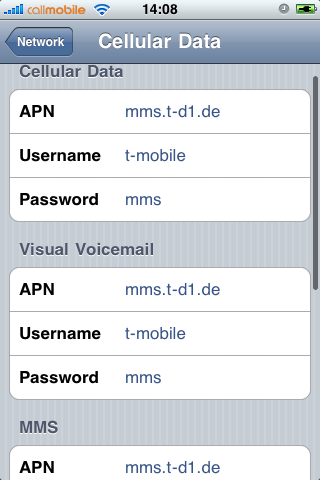
  • Now you see, that the MMS settings are present in all fields, of course this is wrong.
  • Now remember one thing: don't touch or edit the following entries: MMS/APN, MMS/Username, and MMS/Password. Once edited manually they will be lost and missing, because they will not get saved after leaving the menu. You would then have to start over above with point III. Preparations. You got me, right?
  • Enter MMSC and MMS Proxy first.
  • For Callmobile Germany (see above)
    MMSC is http://mms.t-mobile.de/servlets/mms and
    MMS Proxy is 172.28.23.131:8008
  • The result will look like this:
  • Click the Network button to leave the settings menu and
  • do a Reboot now to make sure the iPhone has loaded the new MMS settings

Step 4. Sending two Test MMS’

What we here basically do is, we’re gonna send the MMS to us. This allows us to check if receiving works and this also auto-enables the MMS feature on many carriers worldwide (not with AT&T in the U.S., sorry). After sending the first MMS you may receive an SMS instead that tells you you can watch the MMS on the internet. This is because the carrier has not updated your MMS capability yet. Now wait about five minutes and send another MMS to your own iPhone. This time you should receive it.

This is how we do it. On your iPhone go to:

  • Messages
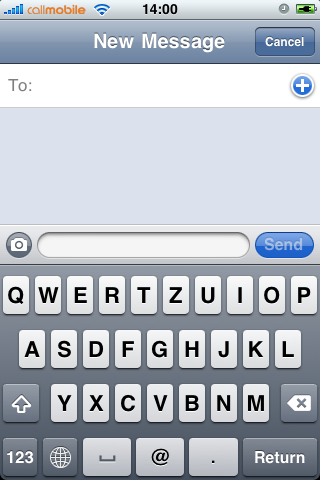
  • Click on New Message icon (also note that a camera icon will be left to the text field)
  • Enter your own iPhone cell number
  • Click the camera icon and take a photo


  • Back in the Messages app, click the Send button
  • Your first MMS will be send now
  • As already written above: you should be either receiving now a text message telling you to read the MMS on the internet or you receive the MMS. If you only get a text message wait a couple of minutes and try again.

If anything does not work: we recommend to check the internet for your carrier specific settings. In 99% of the cases it is not related to the iPhone, but due to wrong carrier settings. Or your carrier simply has deactivated the MMS feature for your subscription (i.e. AT&T)!

Step 5. Editing the EDGE/GPRS Internet Settings

Again on your iPhone ;-) go to:

  • Settings » General » Network » Cellular Data Network
  • Edit the Cellular Data fields
  • As written in the beginning, for Callmobile Germany take this:
    APN is internet.t-mobile
    Username is tm
    Password is tm
  • Click the Network button to leave the settings menu and
  • Reboot your iPhone

V. Final words

You should check if your EDGE/GPRS settings work by deactivating your Wi-Fi and go online via GPRS/EDGE only. People reported it may be slower than before. We cannot confirm this. EDGE/GPRS is slow like hell anyway. If you are running a subscription that supports Visual Voicemail you can also enter the appropriate information after reboot and test if it works.

Did we tell you about our sponsors? They help us maintaining this site free. You may visit them to check their coolest offers. Thanks! If you got questions, additions or shouts, don’t hesitate…